On this page
Google Calendar is clearly a powerful tool for organizing schedules. More than 500 million monthly users actively depend on It to keep up with tasks, meetings, and events.
Whether managing a small team or coordinating across departments, sharing calendars can eliminate the guesswork involved in finding available time slots.
The new normal brought by the pandemic has hooked corporates to virtual meetings, which grew from 48% to 77% between 2020 and 2022. One way to master your schedule amidst the highly collaborative work culture is by learning to share Google Calendar effectively.
Knowing this will help you avoid unnecessary delays and make scheduling seamless for everyone. No, we aren’t just about how to share Google Calendar with someone but also about using the tool to drive clarity and enhance coordination.
Further, we’ll discuss the role of appointment scheduling software and shared calendars. All these will help set the foundation for using tools for smooth communication.
» What is Appointment Scheduling Software?
Keeping track of appointments manually can be a headache, especially when meetings, tasks, and deadlines constantly change.
Perhaps this is where you’ll use appointment scheduling software that acts as your digital assistant. It can take care of everything from booking slots to sending reminders and managing cancellations.
You can even use appointment scheduling software to help teams and individuals organize their time and stay aligned.
These are the tools you’ll use to eliminate the back-and-forth emails that often create scheduling bottlenecks. So, instead of guessing someone’s availability, the end-users can get a clear, up-to-date view of open slots.
Features like automated booking links and integrated notifications ensure that no one misses a beat, whether it's a business consultation or a personal check-in.
» How Google Calendar Works Perfectly With Appointment Scheduling Software?
Now that you know what appointment scheduling software is, it's time to learn how to best use Google Calendar with it.
Plenty of appointment scheduling tools sync directly with Google Calendar, making your calendar an even more powerful time management hub.
For example, when someone uses an appointment booking system, they can have the event added to Google Calendar in real time. You’re notified instantly, and there’s no need to update anything manually.
Such an integration makes sharing schedules easier, and your colleagues or clients can access specific calendars. They can view your availability without compromising privacy, which demonstrates how seamless and effective it is to work with such synchronicity. In the end, it only helps you focus more on your work rather than the logistics behind it.
» How to Share Google Calendar?
Knowing how to share Google Calendar with someone is a must-have skill when you need to collaborate better or ensure everyone stays on the same page.
You can use appointment scheduling software as a single user or as part of a team. Sharing your calendar opens up clear communication and effortless scheduling.
Let’s break this down.
› Set Permissions for Your Calendar
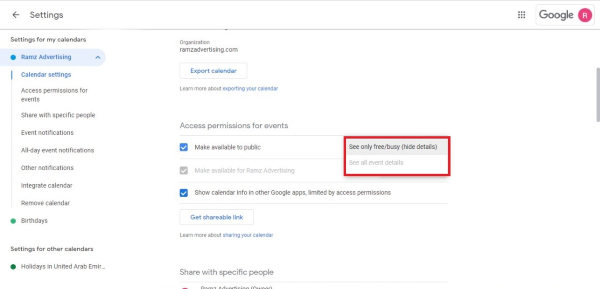
Managing permissions is the foundation of securely sharing your calendar. Google Calendar lets you control who sees what, offering three levels of access:
Width: 600px, Height: 289px
Width: 600px, Height: 289px
Width: 0px, Height: 0px
- View-Only: Ideal for when you just want others to see your events.
- Edit: Useful for collaborators who need to make changes.
- Manage Events: Grants full access, including adding or removing participants.
› Invite People To Your Calendar
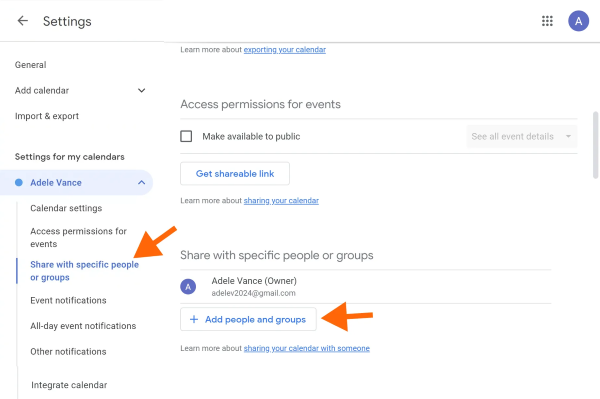
This image shows the UI as you set to invite people in Google Calendar.
Width: 600px, Height: 399px
Width: 600px, Height: 399px
Width: 0px, Height: 0px
- Open Google Calendar on your desktop.
- Locate the calendar you want to share in the left-hand sidebar.
- Click the three vertical dots next to the calendar name and choose Settings and Sharing.
- Scroll to Share with specific people or groups. Add the email of the person you want to share with.
- Choose a permission level from the dropdown menu and click Send.
› Share Google Calendar With Other People
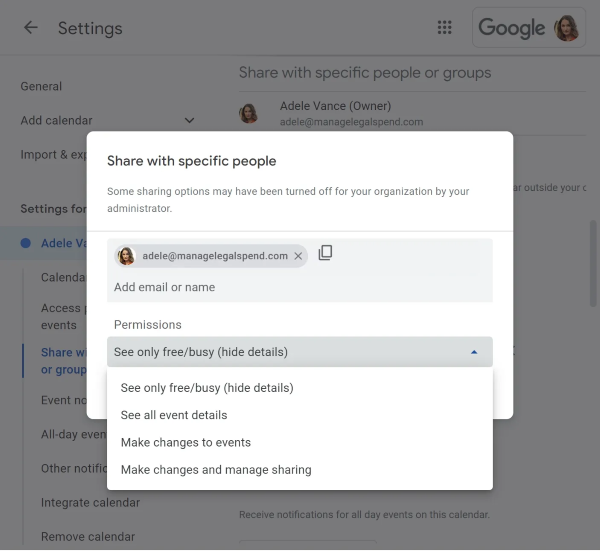
Sharing a calendar with individuals will enable you to grant access to a defined group. It's an ideal method for one-on-one collaborations or small teams.
Width: 600px, Height: 551px
Width: 600px, Height: 551px
Width: 0px, Height: 0px
- In the Settings and Sharing section (as explained above), find Share with specific people or groups.
- Enter the email address of the person you want to invite. Remember, they need a Google account to access the calendar.
- Select the desired permission level
- Click Send to share the invite.
Inviting someone without a Google account won’t work, so confirm their email beforehand to avoid unnecessary delays.
› Share a Public Calendar
Sometimes, sharing your calendar with a broad audience makes sense—think of a public-facing event schedule, office availability, or an organization’s event calendar.
Width: 600px, Height: 379px
Width: 600px, Height: 379px
Width: 0px, Height: 0px
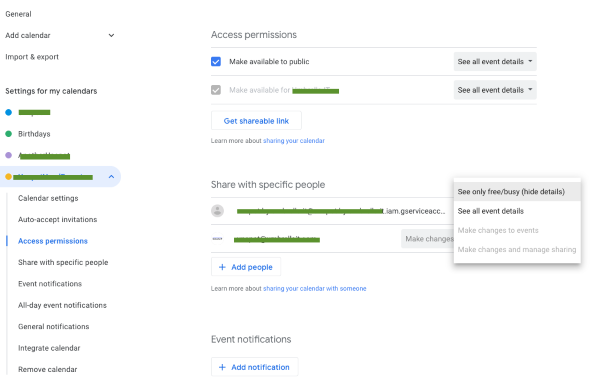
Google Calendar lets you make a calendar public, allowing anyone with the link to view it without requiring a Google account. Here are some steps you should consider taking
- Open Google Calendar and navigate to the calendar you want to make public.
- Click the three dots next to the calendar name and select Settings and Sharing.
- Under the Access permissions for events section, check the box labeled Make available to the public.
- Once enabled, you can choose to share the link to the public calendar or embed it in a webpage.
Below are some of the significant use cases of businesses leveraging public calendars.
- Displaying your office hours or appointment slots.
- Educational institutions can publish event schedules for students and parents.
- Organizations hosting recurring events make sure that audiences always stay updated.
› Use a Shared Calendar for Teams
For workplaces and project groups, shared calendars provide a central hub for organizing schedules, assigning tasks, and ensuring deadlines are visible to everyone.
Width: 600px, Height: 271px
Width: 600px, Height: 271px
Width: 0px, Height: 0px
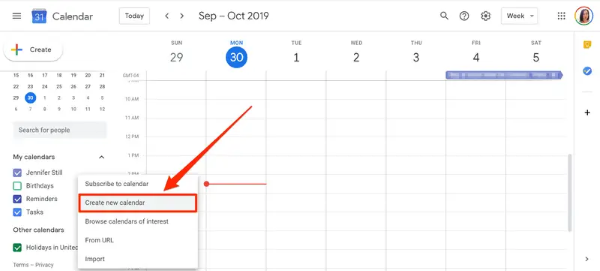
In here, you’re not just sharing your calendar but creating a new one for collective use. Below are some of the key steps you’ll take here
- In Google Calendar, click the + symbol next to “Other calendars” on the left-hand menu. Select Create New Calendar.
- Name your calendar (e.g., “Team Schedule” or “Project Timeline”) and add an optional description.
- Under Settings and Sharing, add team members’ email addresses under Share with specific people or groups.
- Assign the appropriate permissions: view-only for general updates or editing for collaborators.
» Sync Shared Calendars with Appointment Scheduling Software
Managing appointments and meetings becomes easy when you have a shared Google Calendar that syncs seamlessly with appointment-scheduling software like Calendly, Acuity Scheduling, or Doodle.
These tools handle the heavy lifting—organizing bookings, avoiding scheduling conflicts, and ensuring everything stays in perfect order.
By connecting your Google Calendar to a scheduling software, every booked appointment appears instantly in your calendar. This eliminates the need to update events manually and keeps everyone on the same page, whether it’s a client, team member, or friend.
Below are a few of the key steps you’re expected to take when you want to leverage appointment scheduling software with Google Calendars.
Choose the Right Scheduling Tool
Start by selecting an appointment scheduling software that suits your needs. Some are better for individual use, while others cater to larger teams or businesses.
Tools like Calendly and Doodle are great for simplicity, while Acuity Scheduling offers advanced features for businesses.
Access the Integration Settings
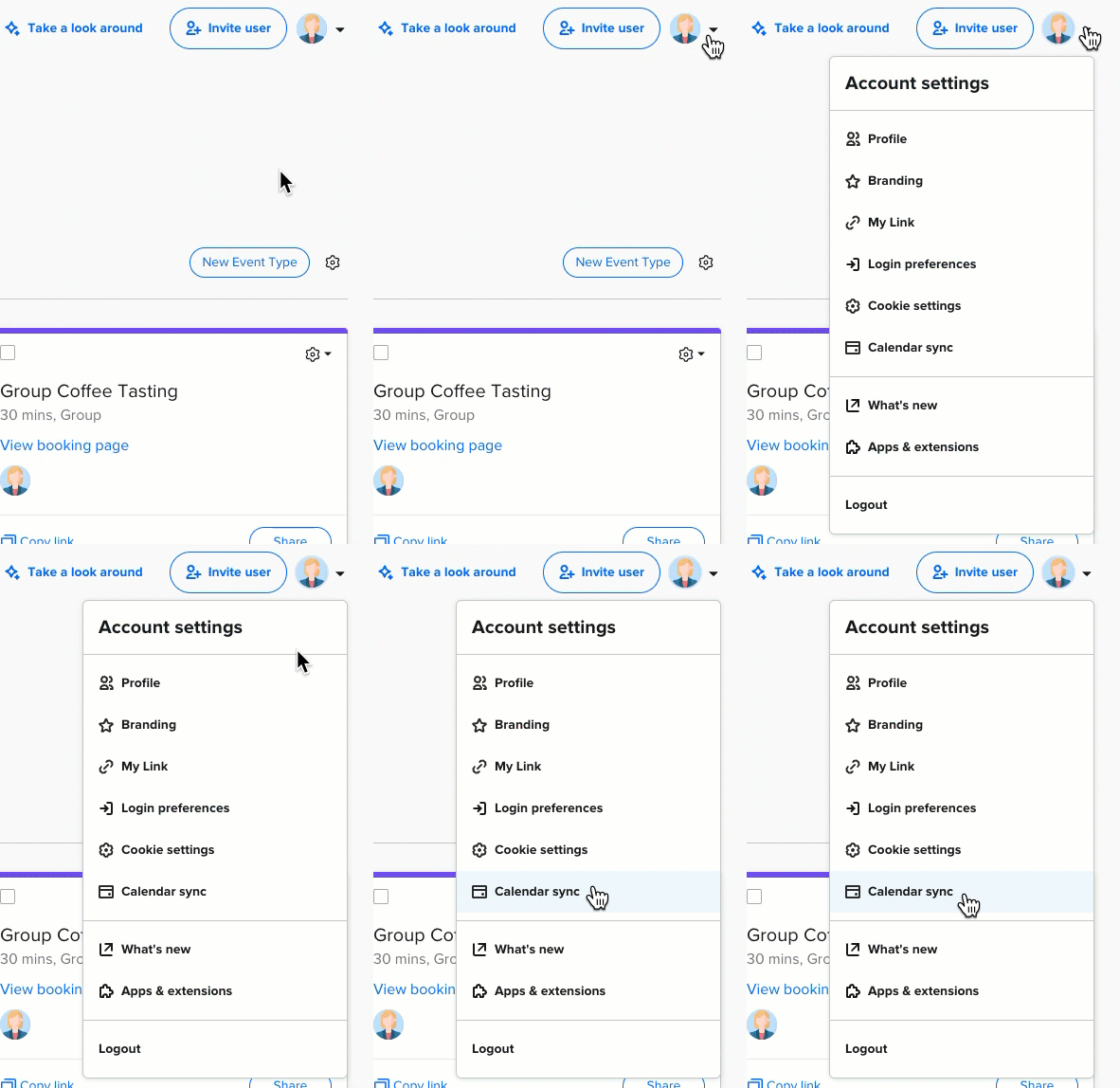
Open your scheduling software’s dashboard and head to the integration section. Most tools have a dedicated menu for calendar connections.
Width: 394px, Height: 574px
Width: 394px, Height: 574px
Width: 0px, Height: 0px
Width: 0px, Height: 0p
Above, we’ve taken an example of the Calendar tool and shown how you can leverage it to integrate calendar sync. Once you open the options to sync your calendar, you’ll have to choose Google Calendar.
Connect Google Calendar
Select Google Calendar as the integration option.
The software will prompt you to log in with your Google account. Just make sure to use the account linked to the calendar you want to sync.
Select Calendars to Sync
After granting access, the software will display a list of your calendars. Choose which ones to sync.
For example, choose your personal calendar for individual bookings or a shared calendar for team-wide events.
Enable Two-Way Sync
If available, enable two-way sync. This feature ensures that any changes you make directly in Google Calendar (like rescheduling an event) are also reflected in the scheduling tool.
This is one of the surest ways to ensure that all your events across calendars are perfectly in sync.
» Conclusion
Sharing your Google Calendar doesn’t have to be complicated.
In fact, it offers a simple way to clarify your schedule when managing a team, planning with friends, or even organizing your personal time.
Learning these basics that we’ve shared will go a long way toward enhancing collaboration by setting permissions, inviting others, or syncing with appointment scheduling software.
The real power of Google Calendar lies in its flexibility. You aren’t just sharing a calendar; you’re creating a system that keeps everyone informed and on the same page. A few tweaks here and there like we mentioned can help you set up a calendar that works exactly the way you need it to—secure, accessible, and easy to use.
Now’s the time to take control of your scheduling and put what you’ve learned into action. Start sharing, syncing, and simplifying your calendar today. You’ll be surprised how much time and energy it saves.
» FAQs
1. Can I share my Google Calendar with someone who doesn’t have a Google account?
Unfortunately, Google Calendar sharing requires the recipient to have a Google account. However, you can create a public calendar or generate a shareable link for viewing purposes, even for non-Google users.
2. How can I stop sharing my Google Calendar with someone?
To revoke access, navigate to ‘Settings’ and share for the calendar. Find the person under ‘Share with specific people or groups' and click the trash icon next to their name. This will immediately remove their access.
3. Is it possible to share only part of my Google Calendar?
Yes, you can limit visibility to specific events by creating a separate calendar for those events. Alternatively, you can set certain events to “Private” to hide their details from shared users.
4. Can I share my Google Calendar on my website?
Yes! Use the Integrate calendar option under Settings and sharing to generate an embed code. Copy and paste this code into your website, and the calendar will appear for public access.
5. What happens if someone edits an event on my shared calendar?
This depends on the permissions you’ve granted. If they have editing rights, their changes will be updated in real-time. If not, they’ll only be able to view the event details without modifying anything.
6. How do I troubleshoot syncing issues with my shared calendar?
First, make sure you’re logged into a correct Google account on all devices. If the issue persists, try refreshing your calendar or disconnecting and reconnecting any integrated tools.