On this page
So think you are on a demo call, and the salesperson says, “We support SSO, offer a 99.9% SLA, and API access is available on the higher tier.” You nod along as if it all makes sense. It probably didn’t, and that’s completely fine. Nobody hands you a dictionary before you start shopping for business software.
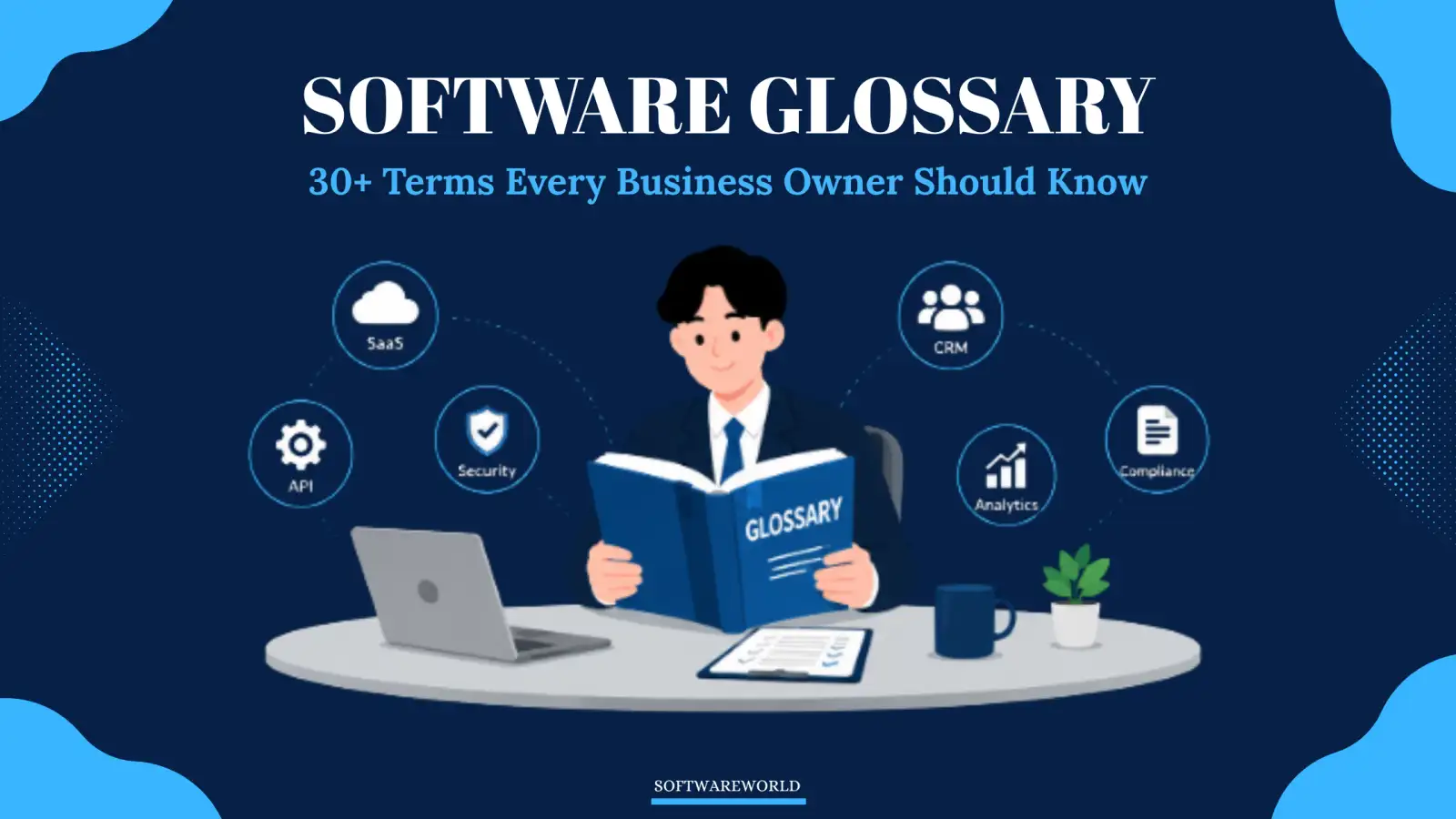
That’s what this guide is for. No fluff. No Fifteen-paragraph explanations for a two-line concept. Just what each term actually means and why it matters to you. Instead of arranging everything alphabetically, we’ve grouped the terms by category, making them easier to understand as you learn.
› How Software Gets Delivered to You
» SaaS (Software as a Service)
The software you access through a browser instead of installing it on your computer. The vendor manages the servers, while you simply log in and pay a recurring subscription. Much of the business software you evaluate today falls into this category.
» On-Premise
The opposite of SaaS. The software runs on hardware that you own and manage, usually a server in your office or a rented data center. It gives you more control, but also comes with more responsibility.
» Cloud computing
The broader category that SaaS falls under. It simply means the software runs on someone else’s servers and is accessed over the internet, rather than on a machine inside your office.
» Open Source
Software whose source code is publicly available, allowing anyone to inspect, modify, or build on it. It doesn’t always mean the software is free, but it often does.
» Freemium
A pricing model where the basic version is available for free, while additional users, storage, or features require a paid plan. Unlike a trial, the free version doesn’t expire.
» White-Label Software
Software developed by one company but sold under another company’s brand. If you’ve ever used an app that felt strangely similar to another one, even though it looked custom-built for a business, this is probably the reason.
› Money and Licensing
» Subscription / License
A subscription means you are paying for access on a monthly or yearly basis. A license, especially for older or on-premise software, is usually a one-time purchase that gives you permanent or long-term usage rights. Now, just remember to read the fine print, as some “Licenses” quietly renew like a subscription.
» Per Seat / Per-User Pricing
You pay based on the number of people using the software. It may sound simple until your team grows, and so your monthly bill grows, sometimes faster than expected.
» Tiered Pricing
In tiered pricing, vendors group features into different plans, such as basic, pro, or Enterprise, so you pay more as you need more functionality. It’s worth checking which plan includes the feature you’re actually looking for, because it’s often one tier above the price that first caught your attention.
» Free Trial
A limited period that lets you test the software before paying for it. Fourteen days is common, while some vendors extend it to thirty. Use that time to test your actual workflow instead of simply exploring the interface.
» TCO (Total Cost of Ownership)
So now we come to the Total Cost of Ownership, the true cost of using a tool after you factor in everything that doesn’t appear on the pricing page, such as training, migration, integrations, and the cost of dealing with problems when something goes wrong. Our SaaS vs. On-premise comparison explains this in more detail because it’s one of the most commonly overlooked costs.
» Vendor Lock-In
So it happens when moving away from a tool becomes so difficult. Whether because your data is stuck in a proprietary format or your workflows depend entirely on one platform– you continue using it even when you’d rather switch away. That’s why it’s worth asking about data export options before you commit, and not after that.
› Common Software Category
» CRM (Customer Relationship Management)
Now let’s have an eye on CRM software. A CRM helps you keep track of customers and leads, making sure follow-ups don’t get missed. If your team is currently managing this through WhatsApp or simply relying on memory, you already know why a CRM exists.
» ERP (Enterprise Resource Planning)
An ERP is a larger, all-in-one system that brings together finance, inventory, operations, and sometimes even HR. Compared to a single-purpose tool, it’s usually a much bigger commitment in terms of both cost and implementation.
» HRMS (Human Resource Management System)
An HRMS manages employee records, leave, attendance, and payroll in one place instead of leaving everything scattered across different spreadsheets.
» CMS (Content Management System)
CMS is the Software that lets you build and manage website content without writing code every time you want to make an update. WordPress is the best-known example, but it’s far from the only one.
» PM Tool (Project Management Tool)
A project management tool is one that helps teams track tasks, deadlines, and responsibilities. It solves the “where are we on this?” question that takes up far too much time in most team meetings.
» POS (Point of Sale)
Now, another category is point of sale. The system that handles transactions at checkout, whether it’s a retail store or a restaurant. These days, many POS systems also include inventory tracking.
› Integration and Technical Terms
» API (Application Programming Interface)
Here, an API is a way for two software applications to communicate with each other automatically, without someone having to move data manually. When a vendor says, “We have an API,” it usually means their software can connect with other tools with very little manual effort.
» Integration
The connection between two software applications, often built using an API, so data flows between them without anyone entering it twice. Before buying any software, check whether it integrates with the tools you have already used; that can save you a lot of unnecessary problems.
» Migration
The process of moving your existing data into a new system. It’s underestimated almost every time. Before signing anything, ask the vendor what kind of migration support they provide.
» Sandbox / Trial Environment
A safe testing environment that works like the real software without affecting your live data. It’s useful for testing changes before introducing them to your entire team.
» SSO (Single Sign-On)
It lets your team sign in to multiple applications using one
set of login credentials, usually through a Google or Microsoft account. It
reduces password fatigue and makes employee offboarding much simpler because
you only need to disable one login instead of several.
» SLA (Service Level Agreement) / Uptime
A vendor’s formal commitment to how reliable their service will be, usually shown as a percentage, such as 99.9% uptime. It sounds impressive until you do the math- 99.9% uptime still allows for more than eight hours of downtime for a year. Ask what happens when the vendor doesn’t meet that commitment.
› Security and Data Terms
» Encryption
A good way of protecting data by converting it into a format that only authorized people can read, even if someone else gets access to it. It’s worth confirming that a vendor encrypts data both in Transit (while it’s being transferred) and at rest (while it’s stored), as some only support one of the two.
» 2FA (Two-Factor Authentication)
Here, an extra security step that comes after entering your password. Generally in the form of a code sent to your phone. Turn this on for anything that stores customer or financial data. It’s one of the simplest and most affordable security upgrades you can make.
» Data Breach
A data breach happens when someone gains unauthorized access to stored data. Now what matters most isn’t whether a vendor has experienced one and maybe many have, but how quickly and transparently they informed their customers when it happened.
» Backup / Disaster Recovery
A backup is a saved copy of your data in case something goes wrong. Disaster recovery is the broader plan that outlines how quickly your system can be restored after a server failure, an outage, or even someone accidentally deleting the wrong file.
» Compliance
So, meeting the legal or regulatory requirements that apply to your industry, such as India’s Digital Personal Data Protection Act, which governs how personal data should be handled. If you work in finance, healthcare, or regularly deal with customer data, this deserves a proper conversation with the vendor rather than being treated as a simple checkbox.
» Data Residency / Localization
Refers to where your data is physically stored. Some industries in India. Payments being the clearest example of it. And have specific rules requiring certain data to be stored on servers located within the country. It is worth confirming this directly with any vendor before signing, especially if you’re considering a cloud-based solution.
› User and Account Terms
» Admin / User Roles & Permissions
These controls determine who can view or change different parts of the software. A good system lets you give someone view-only access to reports without also giving them permission to delete client records. It’s worth checking how detailed these permission settings are before assuming they’ll meet your requirements.
» Onboarding
The process of setting up a new tool and helping your team get comfortable using it. Some vendors simply provide a help document and leave the rest to you, while others guide you through the setup with a real person. That difference matters more than most people expect.
› One Last Thing Before You Go
That’s the glossary. You probably won’t need all thirty of these terms during a single software demo, but the next time a vendor throws a few acronyms into the same conversation, you’ll know what they mean—and, more importantly, why they matter.
If you've reached the stage where you're actively comparing software, our Business Software Buying Guide is a great next step.
Written by the SoftwareWorld team, it's based on the questions readers most often ask during the software buying process.
› Frequently Asked Questions (FAQs)
1. What's the difference between SaaS and on-premise software?
Ans. SaaS runs in your browser; the vendor handles everything. On-premise runs on your servers — and so do the problems.
2. What does vendor lock-in mean?
Ans. When leaving a tool becomes too painful, you stay even when you shouldn't. Always check data export options before signing.
Ans. When leaving a tool becomes too painful, you stay even when you shouldn't. Always check data export options before signing.
3. What is an API in simple terms?
Ans. It's how two apps talk to each other automatically — no manual data copying needed.
4. Is the subscription price the real cost of software?
Ans. No. Training, migration, and switching costs are where the money quietly disappears.
5. What security questions should I ask a software vendor?
Ans. Ask about encryption, two-factor authentication, and what they do when something goes wrong.